
Scroll is the one interaction every visitor performs. Scroll animations turn it into storytelling: sections appear at the right moment, cards stack up, a gallery moves sideways, an image grows until it fills the screen. When they’re purposeful, they make a page feel designed. When they’re random, they make it feel slow.
Here are 12 scroll animation examples with live demos, what each one is good for, and how to add them to an Elementor site without writing CSS or JavaScript.
What is a scroll animation?
A scroll animation is motion on a web page that is triggered or driven by scrolling. There are two kinds: scroll-triggered animations play once when an element enters the screen (a fade-in, a reveal), and scroll-linked animations progress with the scroll position itself (a gallery moving sideways as you scroll down).

Reveal animations (scroll-triggered)
1. Fade and slide in
The classic: elements fade in and rise slightly as they enter the screen. Use it on section titles, not every paragraph.
2. Image mask reveal
The image is uncovered by a mask sliding away, like a curtain. Cleaner and more editorial than a plain fade.
3. Scale and blur in
A container enters small and blurred and settles at full size. Great for product shots and key cards.
Scroll-linked animations
4. Section grows to full screen
A container grows from a card to the full screen as you scroll — the classic "enter the product" moment.
5. Stacked cards
Each card slides over the previous one, leaving a strip visible. See Stacked Cards.
6. Sections sliding over each other
One section pins while the next covers it. See Scroll Stack.
7. Horizontal scroll
Vertical scrolling moves panels sideways. See Horizontal Scroll.
8. Sticky storytelling
Text scrolls while an image stays fixed and changes per step. See Sticky Scroll and our scrollytelling examples.
9. Zoom through
An image or word scales up until it fills the screen and leads into the next section.
10. Text fill on scroll
A sentence fills with color, character by character, at the pace of the scroll.
Scroll helpers
11. Scroll progress bar
A line that fills as you read, or as a section enters the screen. See Progress Line.
12. Smooth scroll
Replaces step-by-step wheel scrolling with an eased glide, so every scroll animation feels smoother. See Smooth Scroll.

Which scroll animation should you use?
| Goal | Good choice |
|---|---|
| Introduce sections gently | Fade/slide in, mask reveal |
| Present a product | Section grows to full screen, zoom through |
| Show services or steps | Stacked cards, sticky storytelling |
| Show a gallery or timeline | Horizontal scroll |
| Make a statement land | Text fill on scroll |
| Make everything feel smoother | Smooth scroll |
CSS scroll animations vs. no-code
With code, scroll-triggered effects are usually built with an IntersectionObserver plus CSS transitions, and scroll-linked effects with GSAP ScrollTrigger or the newer CSS scroll-driven animations. It works, but pinning, spacing and mobile behavior take time to get right.
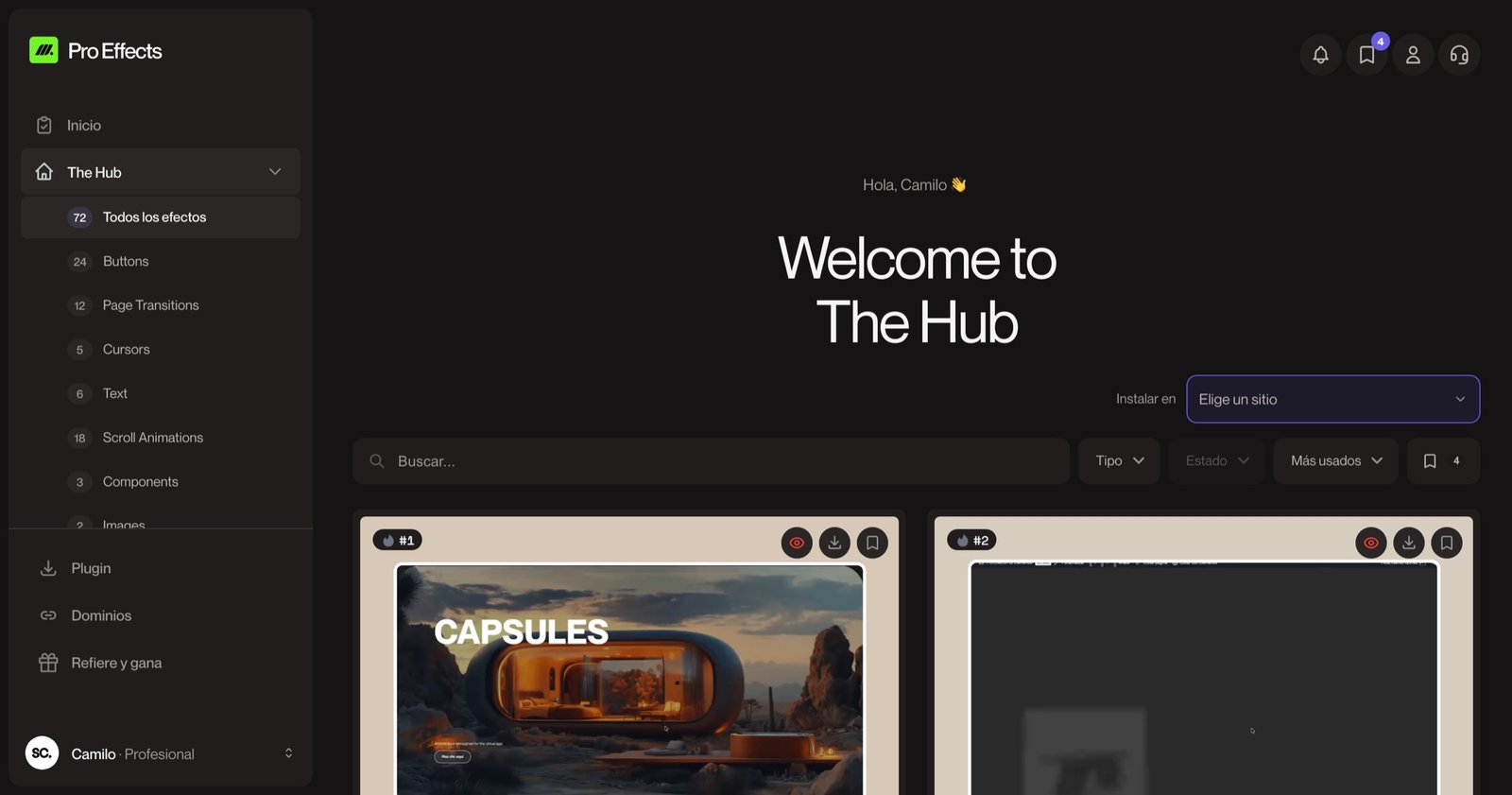
In Elementor, Pro Effects packages these patterns as ready-made effects: you add the effect next to your containers or pick it from the panel, adjust a few settings, and the scroll logic is handled for you. You can try it free, no credit card required.
Rules for scroll animations that don’t hurt
- One standout scroll effect per page section.
- Keep pinned sections short (3–5 steps).
- Never hide content people need to read until an animation finishes.
- Respect reduced motion and test on real phones.
- Load effect code only on pages that use it.
For more motion ideas, see our website animation examples.
FAQ
How do I add scroll animations to a website?
With code, use IntersectionObserver and CSS transitions for reveals, or GSAP ScrollTrigger for scroll-linked effects. In Elementor you can use the built-in entrance animations for simple reveals and a plugin like Pro Effects for advanced scroll effects, without code.
Are scroll animations bad for performance?
Not if they animate transforms and opacity, run only where they’re used and don’t load heavy libraries on every page. Poorly built scroll effects that force layout on every frame are what cause jank.
What is the difference between scroll-triggered and scroll-linked animations?
Scroll-triggered animations play once when an element enters the viewport. Scroll-linked animations are tied to the scroll position and move forward or backward as the visitor scrolls.
Do scroll animations work on mobile?
Most do, but some patterns need a simpler mobile version — for example, horizontal scroll sections often stack vertically on phones. Test every effect on a real device.
Scroll is your storyteller. Add premium scroll animations to Elementor with Pro Effects — no code.