
Parallax scrolling is one of the oldest tricks in web design, and still one of the most effective when it’s done with restraint: elements move at different speeds as you scroll, and a flat page suddenly has depth. Done badly, it’s jittery, slow and makes people dizzy.
Here’s what parallax scrolling is, the types you’ll see on modern sites, when to use it, and how to add it in Elementor without code.
What is parallax scrolling?
Parallax scrolling is a web effect where background and foreground layers move at different speeds while the visitor scrolls, creating an illusion of depth. The name comes from the optical phenomenon of parallax: closer objects seem to move faster than distant ones when you move your head.
Types of parallax on modern websites
| Type | How it works | Good for |
|---|---|---|
| Background parallax | The background image moves slower than the content above it | Hero sections, section dividers |
| Layered (multi-plane) | Several layers move at different speeds | Storytelling, illustrated landing pages |
| Element parallax | Individual images or text drift at their own speed | Editorial layouts, portfolios |
| Depth transitions | One section stays while the next slides over it | Chapter changes in long pages |
When parallax helps — and when it hurts
It helps when it reinforces a story or a sense of place: a hero that feels three-dimensional, a product that comes forward, a section that clearly replaces the previous one.
It hurts when it’s everywhere, when it makes text hard to read while moving, or when it causes jank on phones. It can also cause discomfort for people sensitive to motion, which is why good implementations respect the system’s reduced motion setting.
Performance rules for parallax
- Animate with CSS transforms, not properties that force layout recalculation.
- Keep the number of moving layers small.
- Compress large background images — they’re usually the heaviest part.
- Test on a real phone; scroll performance varies a lot on mobile.
- Turn off or simplify the effect on small screens if it feels heavy.

How to add parallax in Elementor
With Elementor Pro’s Motion Effects
Elementor Pro includes Scrolling Effects: select a widget or container, go to Advanced → Motion Effects, enable Scrolling Effects and turn on Vertical Scroll. Set the speed so the element moves slower or faster than the page, and choose the viewport range where it runs. You can apply the same to a container’s background from its Style tab.
Depth effects beyond classic parallax
If you want the depth without the jitter, section-level effects often look more premium than moving backgrounds. For example, one section pins while the next slides over it:
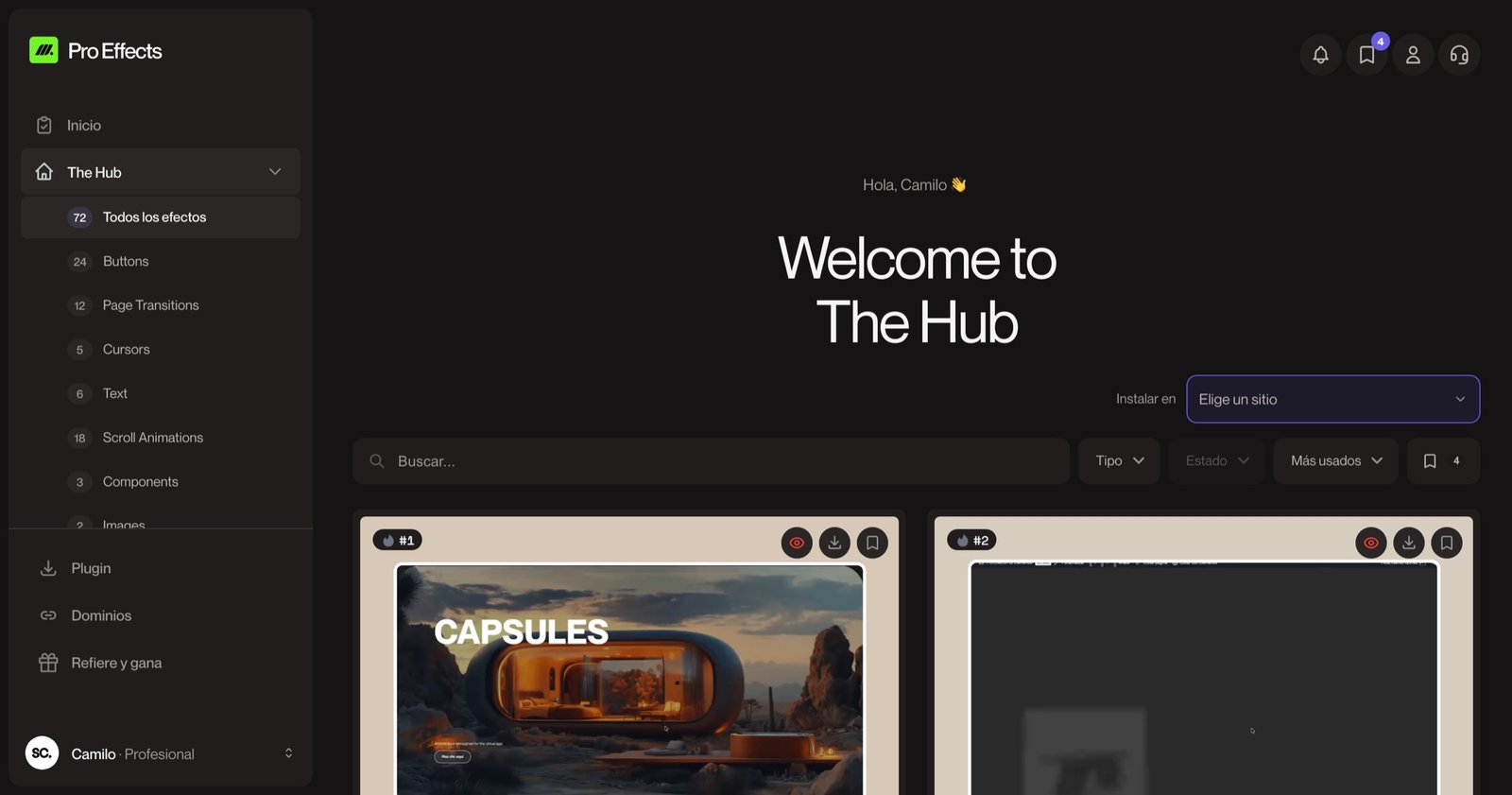
That’s Scroll Stack, one of the Pro Effects scroll effects for Elementor. Others worth a look: Stacked Cards, Horizontal Scroll and Smooth Scroll, which makes any parallax feel smoother. You can try it free, no credit card required.
For more ideas, see our website animation examples.
FAQ
Is parallax scrolling still used in 2026?
Yes, but more subtly than a decade ago. Modern sites use gentle depth — slow-moving backgrounds, layered heroes, sections that slide over each other — instead of full pages of moving layers.
Is parallax scrolling bad for SEO?
Not by itself. Problems come from heavy images that slow the page, or from content that only appears through animation and is hard for search engines to read. Keep the text in the HTML and the page fast.
Does parallax work on mobile?
It can, but it’s often smoother to simplify it on phones. Test on real devices, and disable or reduce the effect if scrolling feels heavy.
How do I make a parallax background in Elementor?
With Elementor Pro, open the container’s Style tab, add a background image and enable Motion Effects → Scrolling Effects → Vertical Scroll on the background. Adjust the speed until the movement is subtle.
Depth is great when it serves the story. Add premium scroll effects to Elementor with Pro Effects — no code.